
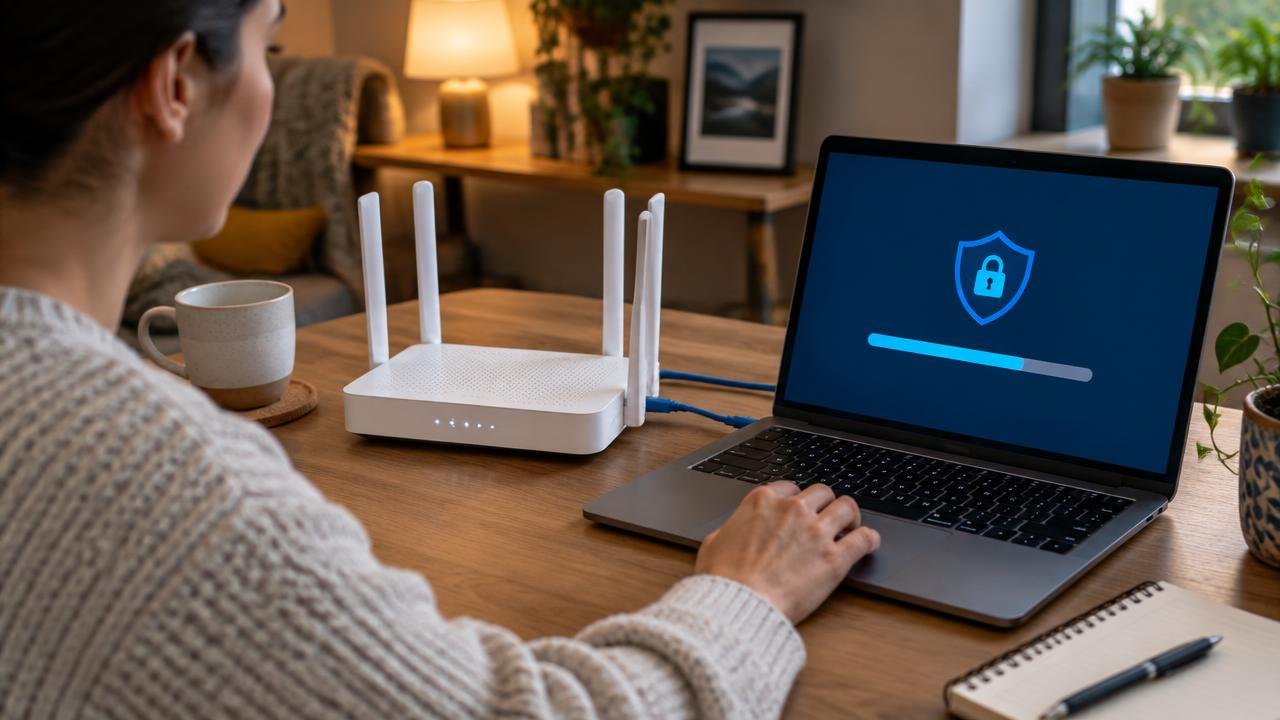
Updating router firmware replaces the device's built-in operating software, which can address security problems and reliability issues. This guide explains how to identify the right device, prepare for downtime, install an official update, and verify the result without assuming every router uses the same menus or recovery process.
How Do You Update Router Firmware Safely?
Use your router manufacturer's official update procedure for the exact model, hardware revision, and region, or follow your internet provider's process if it manages the equipment. Save the settings and connection details you may need, maintain stable power, and do not interrupt installation. After the router restarts, confirm its firmware version and test both connectivity and important settings.
Know which device you are updating
A home network may include a modem, router, wireless access points, and mesh nodes. These may be separate devices or combined in one enclosure. An update for one component does not necessarily update the others, and a firmware file for a similarly named product may be incompatible.
Read the label and the administration interface. Record the model, hardware revision, regional designation if present, and installed firmware version. A model name alone may not be enough: manufacturers can sell different hardware revisions under very similar names.
Check who manages the equipment. A router supplied by an internet provider may use provider-controlled firmware or an automatic update schedule. Do not install retail firmware on managed equipment unless the provider explicitly authorizes that process. Business networks should follow the administrator's change procedure.
For a mesh system, find out whether updates are coordinated through the main node or installed individually. Do not assume that updating the device beside your computer updates every access point in the building. Use the official instructions for the complete system.
Prepare a safe maintenance window
-
Choose a suitable time. Why: The router may restart and disconnect every dependent device. How: Notify household members or colleagues, pause important uploads, and avoid periods when internet-dependent calls or services are essential. Do not promise a fixed outage length.
-
Confirm administrative access. Why: The Wi-Fi password and administrator password may be different. How: Use the official app or a trusted local administration address documented for the device. Avoid entering credentials into a page reached through an unsolicited message or advertisement.
-
Save the configuration. Why: An update or troubleshooting step may require settings to be restored. How: Export a backup if supported and record essential network and provider settings securely. Protect backup files because they may contain sensitive information.
-
Prepare stable power and access. Why: An interruption during installation can leave a device unable to start normally. How: Keep the router connected to reliable power. For a browser-based update, use a wired connection where the manufacturer recommends it; follow app-specific instructions when that is the supported method.
-
Keep instructions available offline. Why: The router's restart may temporarily remove access to its own support pages. How: Save the relevant instructions and support contact details on a device you can still use during the outage.
Do not start if you cannot identify the product, obtain authorized access, or understand how to recover required connection settings. Taking a moment to resolve uncertainty is safer than experimenting with firmware files.
Choose the official update route
The available routes depend on the product. Use the simplest supported route rather than assuming a manual upload is more thorough.
| Route | When it applies | What to verify |
|---|---|---|
| Automatic updates | Manufacturer or provider supports scheduled installation | Enabled status, maintenance behavior, and successful completion |
| Built-in update check | Router interface can find approved releases | Correct device and any prerequisite steps |
| Official mobile app | The router is administered through its supported app | Account access and the correct device or mesh system |
| Manual firmware upload | Official instructions provide a matching download | Model, revision, region, release notes, and file handling |
| Provider-managed process | Internet provider controls the equipment | Provider instructions rather than retail assumptions |
TP-Link's firmware upgrade instructions emphasize selecting firmware appropriate to the device and following the supported installation process. ASUS also provides router firmware upgrade instructions for its products. These are vendor-specific references; menu names and requirements must be checked against your own model's documentation.
For a manual update, navigate to the manufacturer's support site yourself and locate the product's download page. Read release notes for prerequisites, intermediate versions, special reset requirements, or changed features. Follow the stated archive extraction steps rather than guessing from a filename extension.
If the manufacturer publishes a checksum or signature verification procedure, use its instructions. A filename that looks correct is not proof that a download is authentic. Never substitute a file from an unofficial mirror because the official page is inconvenient or temporarily unavailable.
Install without interrupting the process
Open the supported update page or app and confirm the currently installed version. If the built-in check offers an update, review its instructions before starting. If uploading manually, select only the verified file for the exact device.
Start installation once and allow the router to complete its documented stages. Lights may change and the interface may disconnect. Those observations alone do not establish a failure; firmware writing and restarting can temporarily make the device unreachable.
Do not unplug the router, press reset, close an app when instructions require it to stay open, or repeatedly submit the update. Follow the manufacturer's stated waiting period and status guidance. A progress indicator that appears still is not permission to interrupt a firmware write.
Worked example — hypothetical device details: Imagine the label says “Model R, hardware revision 2” and the interface reports firmware “A”. The official download page separates revision 1 from revision 2 and lists firmware “B” for revision 2. You choose the revision-2 instructions and file, not the first download carrying “Model R” in its title.
After installation, the interface reports “B”. That confirms a version change, but you still test internet access and settings. These invented labels illustrate the identification process; they are not real releases or recommendations for a particular product.
If the interface rejects a file as incompatible, stop and recheck the model, revision, region, and release instructions. Do not rename the file to bypass validation or force an unsupported procedure.
Verify the result and handle problems carefully
Reconnect after the documented restart period and sign in through the official interface. Confirm the reported firmware version or successful update status. Some automatic systems already had the offered release, so verification may show no change rather than a new number.
Test more than a single website. Check a wired device if available, Wi-Fi access, and any guest network or mesh nodes you use. Review customized settings such as DNS, parental controls, remote administration, and port forwarding. Confirm that only intentionally enabled remote-access features remain enabled.
If devices can reach the router but not the internet, inspect the provider connection status and compare required settings with your preparation notes. If only one device fails, investigate that device before changing the whole network. Keep troubleshooting changes small enough to reverse.
If the router remains unreachable beyond the official waiting period, use the manufacturer's failure or recovery instructions. Some devices have a special recovery mode; others require support. A factory reset normally clears configuration and is not a general method for restoring the previous firmware or repairing a damaged installation.
Do not assume that restoring an old configuration backup is always supported after an update. Follow compatibility guidance and retain a secure record of necessary settings for manual re-entry if required. Avoid repeated power cycling while the installation state is uncertain.
Make updates a maintenance routine
Enable supported automatic updates when appropriate for the network and confirm how scheduled restarts are handled. If updates are manual, set a reminder and subscribe to relevant manufacturer security notices. Check promptly when an advisory applies to your exact product rather than relying only on a calendar.
Keep a simple maintenance record: device identity, installed version, update date, result, and any settings changed. Store administrative credentials securely and remove configuration downloads from shared or unprotected locations when they are no longer needed.
Review the product's support status. If the vendor no longer supplies security fixes, repeated checks cannot create an update that does not exist. Plan replacement or obtain qualified guidance about reducing exposure; third-party firmware is a separate compatibility and support decision, not a routine substitute.
Firmware maintenance is only one layer of protection. Use a strong administrator password, appropriate Wi-Fi security, and restricted administrative access. An updated router can still be poorly configured, so do not treat a successful installation as proof that every network risk has been resolved.
Questions About Router Firmware Updates
Is the router administrator password the same as the Wi-Fi password?
Not necessarily. One controls access to the router's settings, while the other allows a device to join the wireless network. Follow the documented account-recovery process if you do not know the administrator credentials; do not reset a managed router without authorization.
Can I update the router from my phone?
Yes, when the manufacturer supports that route through its official app or interface. Follow its requirements for remaining connected and keeping the app active. Do not assume instructions written for a wired browser session apply unchanged to an app-managed mesh system.
Will an update erase all my settings?
Many updates preserve settings, but the result depends on the device and release instructions. A particular upgrade may require a reset or configuration changes. Keep a protected backup and connection notes, and check whether restoring that backup is supported afterward.
Can I reinstall the previous firmware if I dislike the update?
Only if the manufacturer explicitly supports downgrading for that device and release. Compatibility, security protections, and configuration formats may prevent it. Do not assume an older download is safe or installable simply because you can find the file.
Update Carefully and Verify Router Operation
A safe update starts with exact device identification and ends with verified operation. Use official instructions, prepare for downtime, avoid interrupting installation, and seek product-specific recovery help rather than improvising with reset buttons or firmware files.
Next steps: Explore the Technology News hub, review cloud versus on-premises storage, or learn how language models work.
Sources
- TP-Link — How to upgrade the firmware on TP-Link Wi-Fi routers
- ASUS — How to update the firmware of your router
This guide is general education, not professional security or technical support advice.