
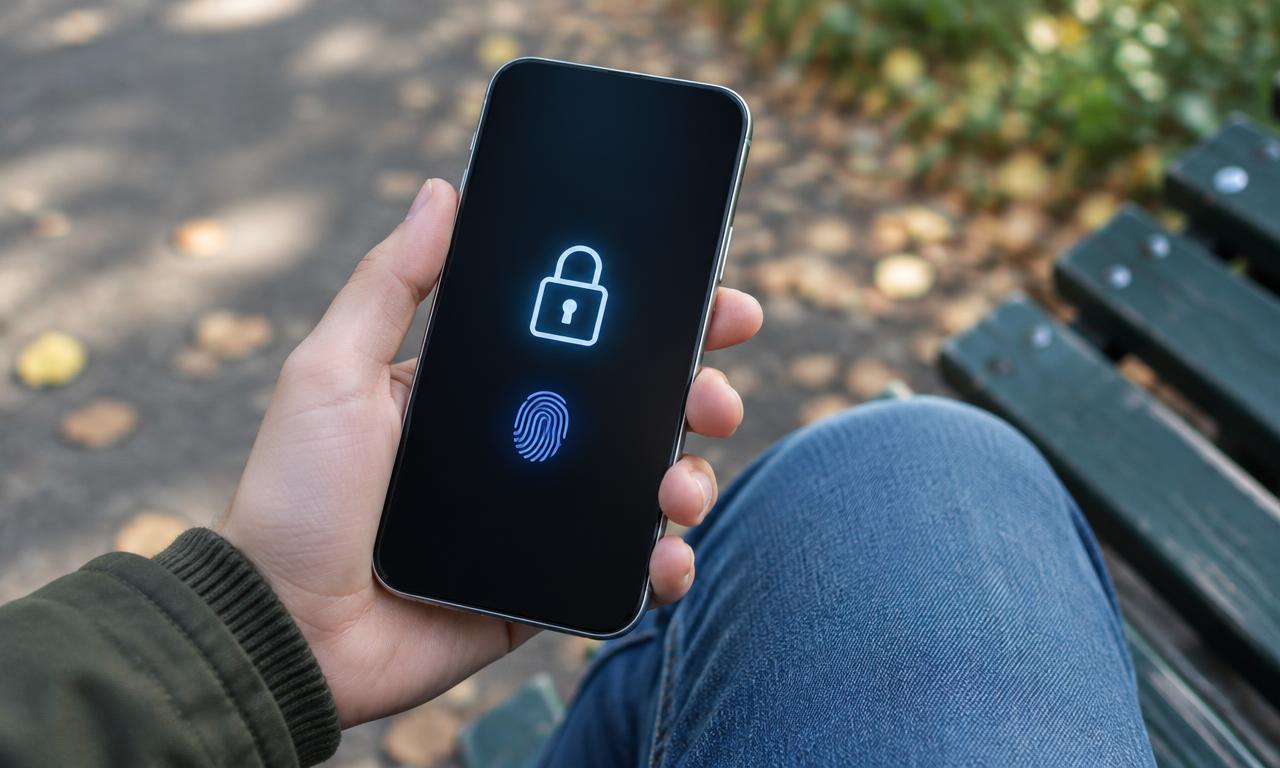
A secure smartphone needs more than a locked screen: it also needs protected accounts, current software, and a recovery plan that works without the device. This checklist focuses on practical steps for ordinary personal and work use, with room to adapt settings to your platform and risk level.
How Can You Secure a Smartphone?
Set a strong device passcode, install supported updates promptly, and restrict unnecessary app permissions. Protect the accounts connected to the phone with unique passwords and strong sign-in methods, then enable backups and device-finding features. Verify that you can recover accounts from another trusted device. No setting guarantees safety, but these layers reduce several common routes to data loss and account takeover.
1. Strengthen access to the device
Why: A phone often holds email, saved sessions, payment access, and the ability to reset other passwords. Preventing casual physical access protects more than its local files.
How: Use a long passcode or password that is not a birthday, repeated digit, or reused banking PIN. Enable a short automatic-lock interval appropriate to your use. Avoid entering the code where others can watch, and keep it private even when someone offers to help with the device.
Biometrics can make frequent unlocking convenient, but their strength depends on the implementation. Do not assume all face-unlock systems provide equivalent protection. The fallback passcode remains important because devices require it in various circumstances, including after a restart or repeated failed biometric attempts.
Apple's passcode guidance explains available passcode options and how setting a passcode enables data protection on iPhone. On Android, encryption and unlock behavior depend on device and version; consult the manufacturer's security guidance rather than looking for an identical menu on every phone.
Review what appears before unlocking. Hide sensitive notification previews, especially messages containing account codes or private work details. Also review lock-screen access to controls and accessories. Choose settings that balance emergency usability with the information you want unavailable to a stranger.
2. Keep software supported and apps intentional
Why: Updates fix known flaws, while reducing the number of unnecessary apps limits the software and accounts you must trust.
How: Turn on automatic updates where available and check periodically that installations actually complete. Devices may need power, storage, connectivity, or a restart. Update applications as well as the operating system. Google's Android update instructions show how to inspect version and security-update information; availability depends on the device and provider.
Use the platform's official store or another explicitly trusted, well-understood distribution channel. Store screening reduces some risks but does not prove every app is safe. Check the developer identity, requested permissions, and whether a similarly named app is impersonating the product you intended to install.
Do not install a configuration profile, remote-control tool, or unfamiliar application merely because a caller or message says your account is in danger. Those requests can give an attacker extensive access. For workplace enrollment, confirm the process with your organization using a known contact route.
If the phone no longer receives security fixes, plan replacement or a change in use. A new case, a factory reset, or an antivirus subscription cannot supply missing operating-system patches. Ask your employer before using an unsupported device for work data.
3. Limit data access and protect connected accounts
Why: An app does not need every available permission to be useful, and an attacker can compromise a cloud account without physically touching the phone.
How: Review location, camera, microphone, contacts, photos, and file access. Prefer limited, selected, or while-in-use access when it meets the task. Remove apps you no longer use, and investigate permissions that do not match the app's purpose.
Some permissions carry broader implications than their labels suggest. Accessibility services, device administration, notification access, and screen-sharing tools can expose sensitive information or enable control. Grant them deliberately and only when you understand the need. Removing an app's permission does not necessarily delete data it already uploaded.
Use a password manager or another reliable system to maintain unique passwords. Enable multifactor authentication or passkeys where supported. Keep recovery codes in a secure place that remains accessible if the phone is lost; storing the only copy on that phone defeats the purpose.
Secure the primary email account and the account used for device backup especially carefully. Review signed-in sessions and recovery contact details. Where your carrier offers account protections against unauthorized changes, evaluate those too. A strong device passcode does not prevent every attack against a carrier or online account.
4. Prepare recovery before you need it
Why: A missing phone can remove your data and your normal way to prove account ownership at the same time. Recovery preparation turns a crisis into a defined sequence.
How: Enable the platform's device-finding features and confirm that the correct phone appears under your account. Google's Find Hub help explains locating, securing, or erasing an Android device and the conditions that affect those actions. Available features vary with settings, hardware, and connectivity.
Check backups separately. A photo-sync service may not include downloaded files, messages, authenticator accounts, or application-specific data. Read what each backup covers, when the last successful backup occurred, and whether restoring it requires a password or key you have not saved elsewhere.
| Check | What success looks like | Failure to avoid |
|---|---|---|
| Device finding | Correct device visible from a trusted browser | Feature assumed active but never configured |
| Data backup | Recent backup with understood coverage | Mistaking sync for complete recovery |
| Account recovery | Backup method works without the phone | Every recovery route points to the lost device |
| Key records | Necessary details stored securely elsewhere | Unlock code stored openly with the phone |
Do not test recovery by erasing your only device. Instead, inspect settings, verify account access, and restore a harmless sample file where practical. For business phones, ask IT what is backed up centrally and who is authorized to issue a remote wipe.
5. Use a calm lost-phone and suspicious-message procedure
Why: Urgency encourages mistakes. A prepared sequence makes it easier to protect accounts without handing credentials to someone pretending to help.
How: If a phone disappears, use another trusted device to access the official finding service. Mark it lost or secure it if available, contact your workplace if necessary, and speak to your carrier about service protection. If theft is likely, prioritize personal safety rather than confronting someone based on a location marker.
Remote erasure can protect data, but it has consequences and may not execute immediately. Read the platform's instructions, especially how erasure affects location tracking and activation protections. Do not remove a stolen device from its account merely because a stranger says that is necessary to recover it.
For suspicious messages, open the relevant service through a known app or manually entered address rather than using the supplied link. Never approve an unexpected sign-in prompt just to stop notifications. An apparent message from a colleague or delivery company still needs context.
Public Wi-Fi requires judgment, not panic. HTTPS protects properly encrypted traffic in transit, but it does not make a fraudulent website trustworthy. A VPN changes who carries some traffic; it does not cure phishing, malicious apps, or a compromised account. Avoid bypassing certificate warnings and verify the network you join.
Work through a simple recovery rehearsal
Imagine a hypothetical freelancer who loses a phone during travel. Before the trip, they enabled device finding, verified cloud backups, and stored account recovery codes securely outside the phone. Their laptop remains available as a trusted device.
They use the official finding service from the laptop and secure the phone. Next, they notify their carrier and review important account activity. Because a work account is connected, they also notify the client administrator rather than assuming a personal remote wipe satisfies every reporting obligation.
The freelancer can access email without approving a prompt on the missing phone because a backup sign-in method exists. They restore necessary documents on a replacement device and re-enroll authentication apps according to each service's procedure. Not every session or application state returns automatically, but essential access survives.
The lesson is not that every loss ends smoothly. It is that recovery should not depend on one device, one remembered password, or a backup whose contents have never been checked. Rehearse the access path while the phone is still in your hand.
Questions About Smartphone Security
Do I need a separate antivirus app?
It depends on the platform, device, and your needs. Start with supported software, trusted app sources, account protection, and permissions. An additional app cannot compensate for missing updates, and claims about scanning capability should be evaluated against platform restrictions.
Should I turn off every permission?
No. Maps need some location access to provide navigation, and calling apps may need a microphone. The goal is the least access consistent with the feature you want, not breaking every application. Revisit the decision when your usage changes.
Is deleting an app enough after suspicious activity?
Not always. If credentials were entered into a fraudulent page, change them through the legitimate service and review sessions. If account takeover, workplace exposure, or persistent compromise is suspected, seek appropriate help rather than assuming deletion reverses every consequence.
Protect the Device and Its Accounts
Phone security is a combination of access control, supported software, restrained permissions, account defense, and recoverability. Complete the essentials first, then review them after major updates, device changes, or suspicious activity.
Next steps: Understand mobile operating-system protections, assess replacement options with the mobile platform guide, and explore Mobile Technology.
Sources
- Apple iPhone User Guide — Set a passcode on iPhone
- Google Android Help — Check and update your Android version
- Google Android Help — Find, secure, or erase a lost Android device
This guide is general education, not professional security advice.