
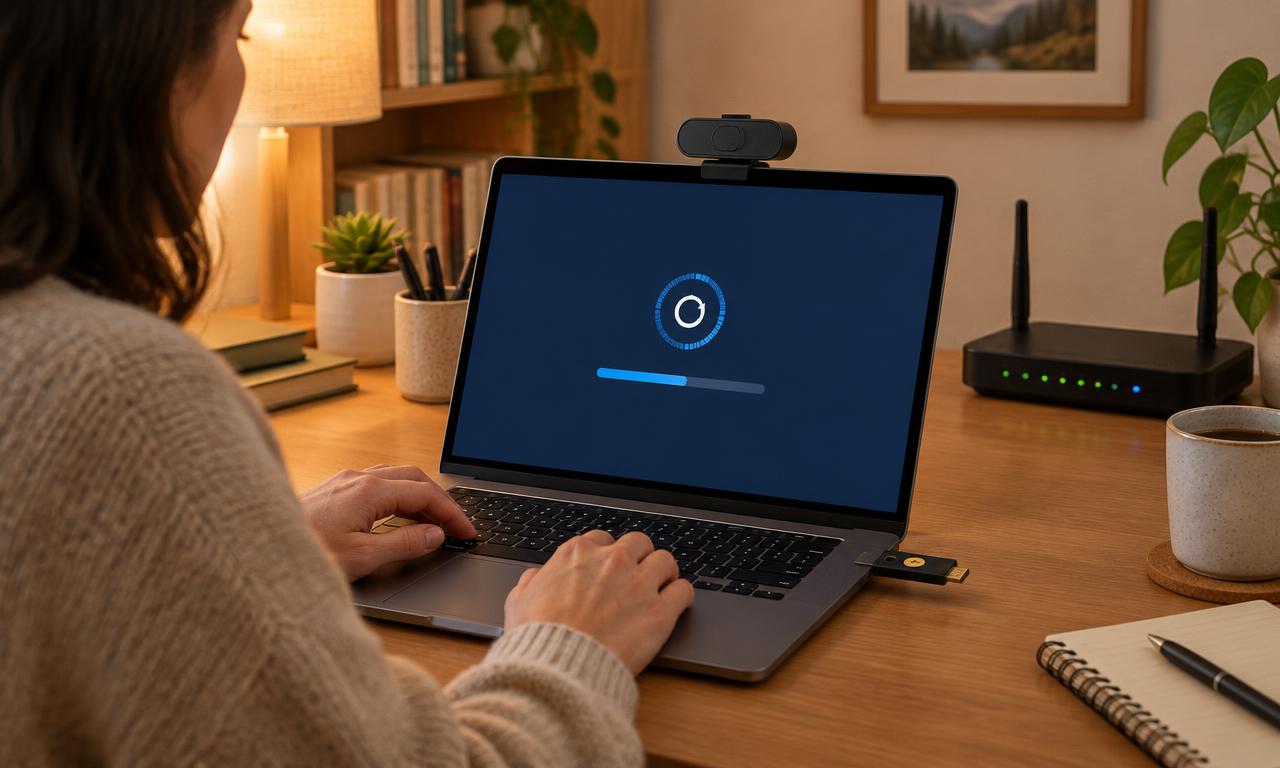
Personal cybersecurity works best as a small set of repeatable habits, not a collection of alarming warnings. This checklist helps you protect the accounts and files you depend on, organize routine maintenance, and prepare for a lost device or suspicious login.
How Can You Improve Personal Cybersecurity?
Start with unique passwords, multi-factor authentication, automatic updates, and recoverable backups. Protect your main email account first because it often controls password resets elsewhere. Then reduce unnecessary access and practice verifying unexpected requests before acting on them.
Set priorities and make the work manageable
You do not need to change every setting in one sitting. Begin with accounts that can unlock other accounts or expose money, identity information, or irreplaceable records. Main email, your password manager, financial accounts, and cloud storage are useful starting points.
CISA's Secure Our World guidance emphasizes strong passwords, MFA, recognizing phishing, and software updates. These are foundational habits rather than proof that a person or device cannot be compromised.
Make a private inventory of important accounts and devices. Record who uses each device, whether updates are supported, and how account recovery works. Do not turn this inventory into an unprotected document containing passwords or recovery codes.
| When | Action | What completion looks like |
|---|---|---|
| Today | Protect primary email | Unique password, MFA, recovery details checked |
| This week | Review devices | Updates installed and screen locks enabled |
| This week | Check backups | A sample file restores successfully |
| Monthly | Review access | Unneeded sessions and connected apps removed |
| After a major change | Recheck recovery | New phone or email reflected in account settings |
Treat the schedule as a starting point, not a rigid standard. Someone facing targeted harassment or handling sensitive work may need additional professional help and more restrictive arrangements.
1. Strengthen passwords and account recovery
Why: Reusing a password lets a leak at one service create risk elsewhere. Recovery settings can also become an alternate route into an otherwise well-protected account.
How: Generate a different long password for each account with a reputable password manager. Browser-based managers can be useful too; compare their device support, account protection, recovery process, and suitability for shared devices rather than assuming a separate app is always superior.
Choose a strong, unique master password or account credential for the manager and protect it with available MFA. Understand what happens if you forget that credential. A recovery process that exists only on the phone you might lose is not a complete plan.
Enable MFA on important accounts and save recovery codes securely. Review recovery email addresses and phone numbers after changing providers, moving jobs, or replacing a phone. Never use someone else's account as a recovery destination without understanding the dependency and getting their agreement.
Change passwords that are reused, exposed, or suspected of compromise. Avoid constant arbitrary changes that encourage predictable variations. If a provider warns about a breach, open the provider through your usual app or saved address instead of following a message link immediately.
Remove accounts you no longer need when practical. Where deletion is not straightforward, remove unnecessary payment details, revoke connected apps, and keep the remaining login protected.
2. Keep devices supported, updated, and locked
Why: Updates can repair security weaknesses, while a screen lock reduces casual access to an unattended device. Unsupported systems may stop receiving important fixes even when they appear to work normally.
How: Turn on automatic updates for the operating system, browser, and important applications. Allow required restarts and periodically check whether updates have failed. Use official app stores or the developer's verified distribution route rather than download links in unsolicited messages.
Set a device PIN or password and a short automatic lock interval appropriate to your use. Enable supported device encryption and store its recovery information safely. Encryption is particularly useful when a device is lost while locked or powered off; it does not stop malware operating inside an unlocked session.
Check whether built-in security protections are active. On Windows, Microsoft describes Windows Security as including antivirus and other protection settings. Do not install overlapping real-time antivirus tools merely to increase the number of products running.
Use a standard account for daily activity where practical and reserve administrator privileges for tasks that need them. Keep shared computers separated into individual user accounts so one person's convenience does not expose everyone else's saved information.
3. Verify messages before following instructions
Why: A convincing request can persuade you to bypass otherwise good security. Criminals may impersonate a colleague, bank, delivery company, support agent, or relative, including through an account that was genuinely compromised.
How: Pause when a message demands urgency, secrecy, payment, remote access, or a verification code. Open the relevant service independently or contact the person through a previously known route. A familiar display name is not enough to establish identity.
Do not approve a sign-in prompt you did not initiate. Do not read an authentication code to an unsolicited caller. A caller who knows your address or account details has not proved they are legitimate; those details may already be available elsewhere.
Consider this hypothetical example: a text says a delivery is blocked until you pay a small fee. Instead of using the link, you open the delivery company's app and check the tracking number from your original order. If no problem appears, you avoid supplying payment details to the message sender.
The important step is changing communication channels, not spotting every spelling mistake. Well-written scams exist, and genuine messages can contain errors. If a request involves a workplace account, use the organization's reporting process instead of investigating a suspicious attachment yourself.
4. Make backups you can actually restore
Why: Files can disappear through hardware failure, theft, accidental deletion, or malicious activity. File synchronization alone may copy the loss or unwanted change across devices.
How: Identify the files that would be hardest to replace. Use backups with appropriate version history and retention, and keep a copy separated from ordinary device access where practical. An external drive that stays connected continuously may be reachable by the same malware as the computer.
Choose a schedule based on how much recent work you could afford to lose. A weekly copy may suit infrequently changing records but not files edited every day. Check cloud backup storage limits and what happens when a subscription expires.
Restore a sample file to a separate location. Confirm it opens and contains the expected content. Record how to retrieve the backup if your normal computer is unavailable, including which account credentials are needed.
For a hypothetical household, imagine family photos sync to a cloud service and also receive a monthly offline copy. The cloud version history may help with a recent accidental deletion, while the separate copy may help if the account becomes inaccessible. Neither arrangement is useful if nobody can find the recovery credentials or confirm the copies were completed.
5. Reduce unnecessary access and prepare for trouble
Why: Old browser extensions, abandoned app connections, and shared credentials increase the number of ways information can be exposed. A short response plan reduces confusion when something unexpected happens.
How: Review installed apps, browser extensions, and account-connected services. Remove items you no longer use, especially those requesting broad access to messages, files, or browsing activity. Check location, microphone, camera, and notification permissions on phones.
Use HTTPS connections and pay attention to certificate warnings. Public Wi-Fi does not automatically expose the contents of correctly encrypted HTTPS sessions. A VPN changes who carries your network traffic, but it does not make a fraudulent website trustworthy or prevent you from disclosing a password voluntarily.
For sensitive activity on an unfamiliar network, using your own mobile connection may be a simpler option. Avoid sharing devices for sensitive logins when you cannot trust their configuration. Remember that a private browsing window does not make an untrusted computer safe.
Prepare a short incident note: how to contact your bank, find a device, revoke account sessions, and reach workplace support. If compromise is suspected, use a known-clean device to secure key accounts, review recovery settings, and revoke unfamiliar sessions. Preserve useful evidence and obtain help when financial loss or workplace systems are involved.
Questions About Everyday Cybersecurity
What should I do first if I only have fifteen minutes?
Protect your primary email with a unique password and MFA, then verify that you can recover it. If those controls are already in place, check pending updates and confirm that important files have a usable backup.
Should family members share one password manager login?
Individual accounts with an intentional sharing feature are generally easier to control than one shared master login. They let each person maintain private credentials and make it clearer which shared access needs changing when circumstances change.
Can a backup protect me from every ransomware incident?
No. A usable, separated backup can support recovery, but it does not prevent information theft or guarantee a clean restoration. You may need help removing the cause of compromise before restoring files or reconnecting devices.
What if an update breaks an application I need?
Check the publisher's known issues and seek a supported fix rather than abandoning updates indefinitely. For essential work, plan maintenance and recovery options, and involve your IT support team before making changes to managed devices.
Build Consistent Habits to Reduce Risk
A practical routine closes common gaps without requiring constant vigilance. Make the important controls repeatable, and verify recovery rather than assuming a toggle or subscription has solved the problem.
Next steps: Read the MFA basics guide for safer sign-ins, use the security software selection guide for purchasing decisions, and explore the Cybersecurity hub.
Sources
- CISA — Secure Our World
- Microsoft Support — Stay protected with Windows Security
This guide is general education, not professional security advice.